Menu


Changelog

What we've shipped and improved in Revelica.

One email a month with what's new.

Get updates

Revelica records can now appear as a card in Claude that opens the live Canvas. This keeps the record beside the conversation when long text results make a plan or decision hard to follow.

Show a record in the chat

The show tool puts one card in the conversation with the record's icon, name, type, and related-record count. Data tools no longer draw their own cards, so reading and writing records does not break up the conversation with a card for every result. Ask Claude to show a record when it needs to be visible.
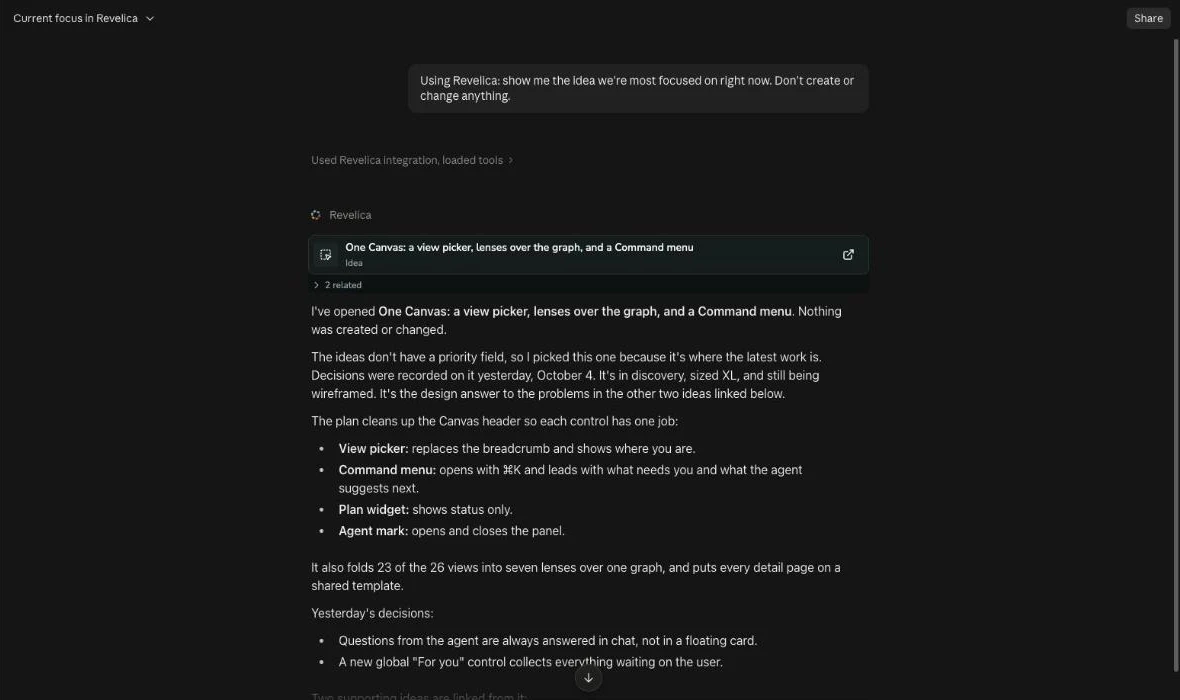
Claude showing a Revelica record card in the conversation
Ask about your work and Revelica shows the record in the chat.

Open the live Canvas

Open the card to view the full Revelica Canvas beside the conversation. It is the live, editable app Canvas, with real-time updates; Canvas actions go to the assistant.
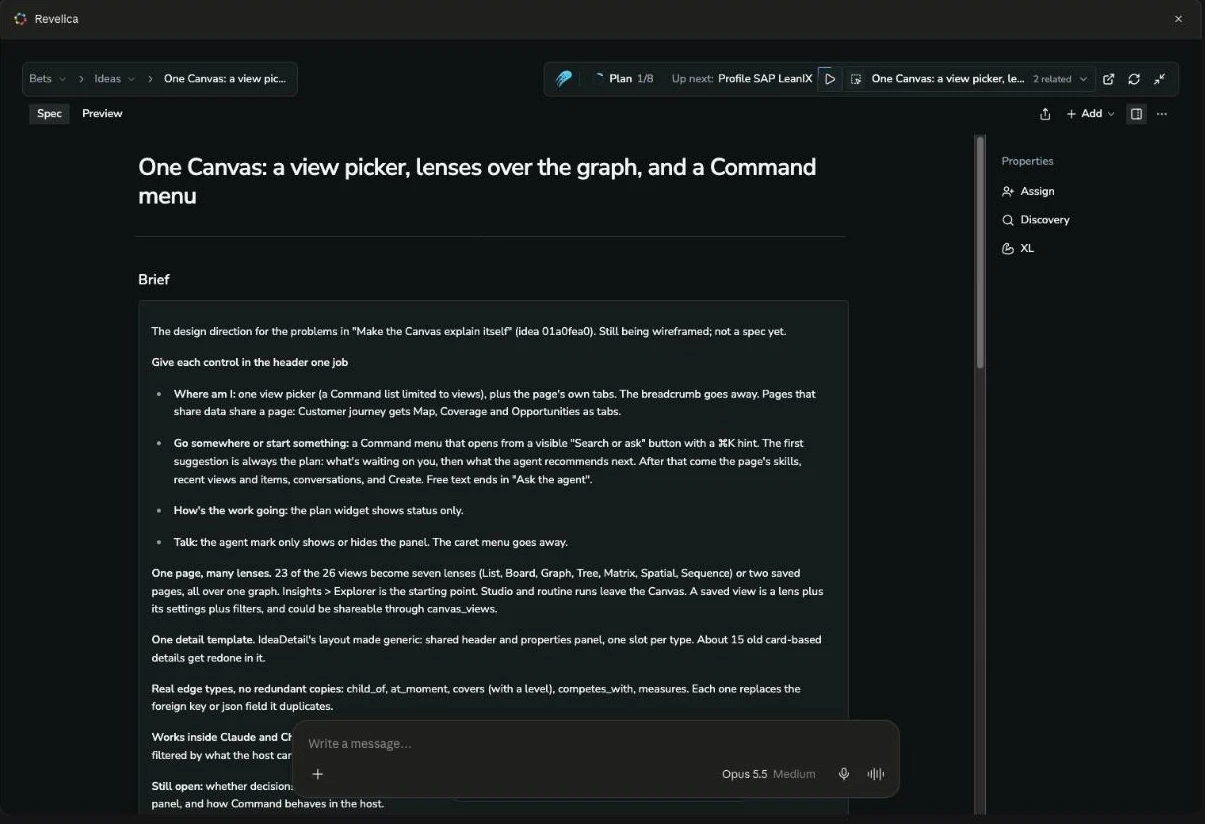
The full Revelica Canvas open inside Claude with the conversation alongside
Open it and the full Canvas runs inside Claude, with the conversation alongside.

Available through the Connector

This is an update to the Claude Connector and requires no additional installation. Clients without an embedded UI, including Claude Code, receive an "Open in Revelica" link.
Revelica Plugin for Claude

NewIntegrationsMCP

The Claude Plugin combines the Claude Connector with three starter skills available as slash commands. It adds named starting points for common jobs; the Connector already carries every Revelica skill.

Three starter skills

The Plugin includes drive-product-outcome, ingestion, and interview-snapshot. Each starter loads its corresponding skill from the server, so the instructions for the job come from Revelica. Use a slash command to start one of these jobs in Claude.

Find the Plugin in Claude

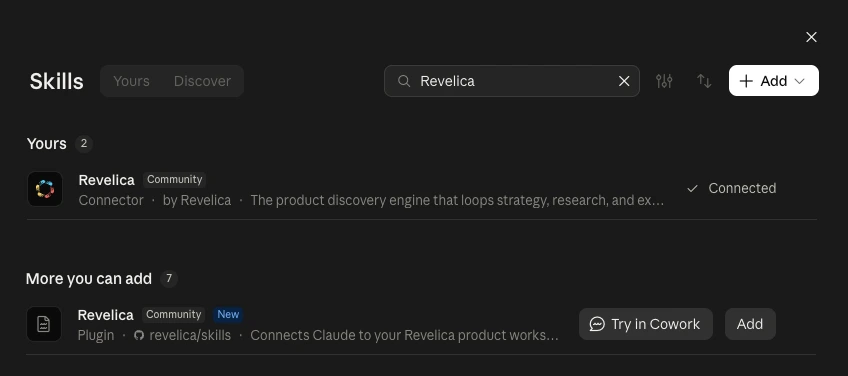
In Claude, open Settings > Skills, choose Discover and search for "Revelica". The Claude Plugin has Community status and is served from the revelica/skills marketplace on GitHub. The Claude Connector remains available separately in Claude's connectors directory.

Claude's Skills settings showing the Revelica Connector and the Revelica Plugin in Discover
Search Discover for Revelica: the Plugin appears under More you can add, next to the Connector.

Install in Claude Code

Claude Code can install the Plugin from the same GitHub marketplace.

Use the Connector on its own

The Connector exposes every skill through list_skills and load_skill. The Plugin's three starter commands provide another way to begin those workflows without changing which skills are available.

Claude and other MCP clients can now use Revelica's core product skills. The assistant can follow the playbook for a job as well as read the workspace data it needs.

One skill per job

Server instructions route work to drive-product-outcome, frame-bet, model-your-business, setup-project-outcome, write-product-spec, design-experiment, and product-for-coding-agents. Loading a skill also brings a summary of the starting workspace data into the conversation. Setup and competitive analysis can run in the conversation too.

Plan work in the conversation

Ask the assistant to plan work toward a goal, frame a bet, write a product spec, or design an experiment. Skills ask questions in chat and wait for answers as the work proceeds. Tasks planned over MCP never start automatically.

Start with a project

Connecting to Revelica now starts with a project, following the same approach as onboarding. The connection flow also offers "Continue without an account" for trying Revelica before creating an account.

Story maps now have a sticky note layout alongside document and Markdown views. The same spec can be used to plan the work visually, review the requirements, and hand them over for implementation without maintaining separate copies.

Sticky notes

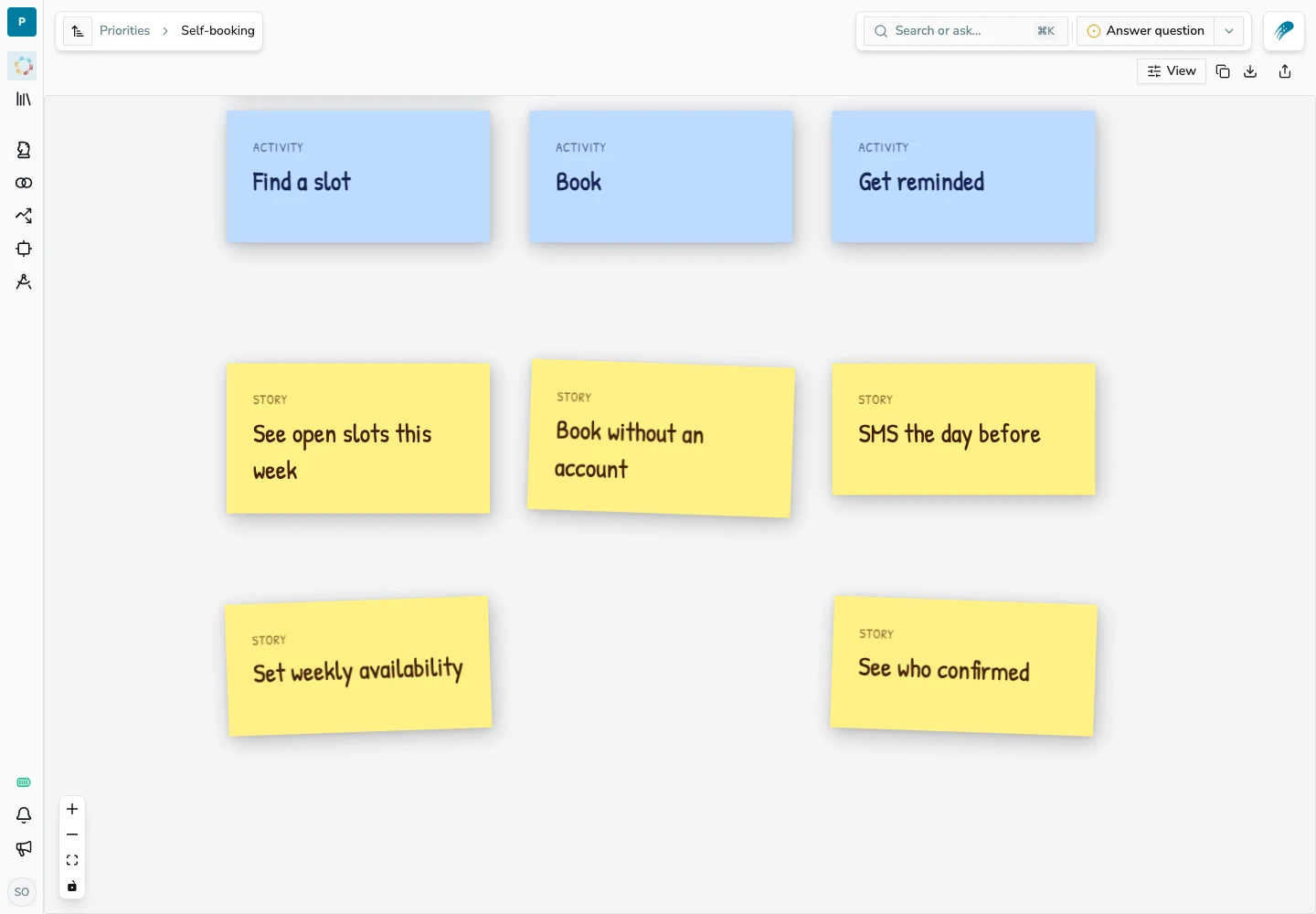
Choose Sticky from the View menu. Activities run across the top, with stories stacked below each activity and horizontal dividers separating releases. User notes sit above the activity where their stories begin.

A story map with activity and story sticky notes
Stories stack beneath activities in the Sticky view.

Document view

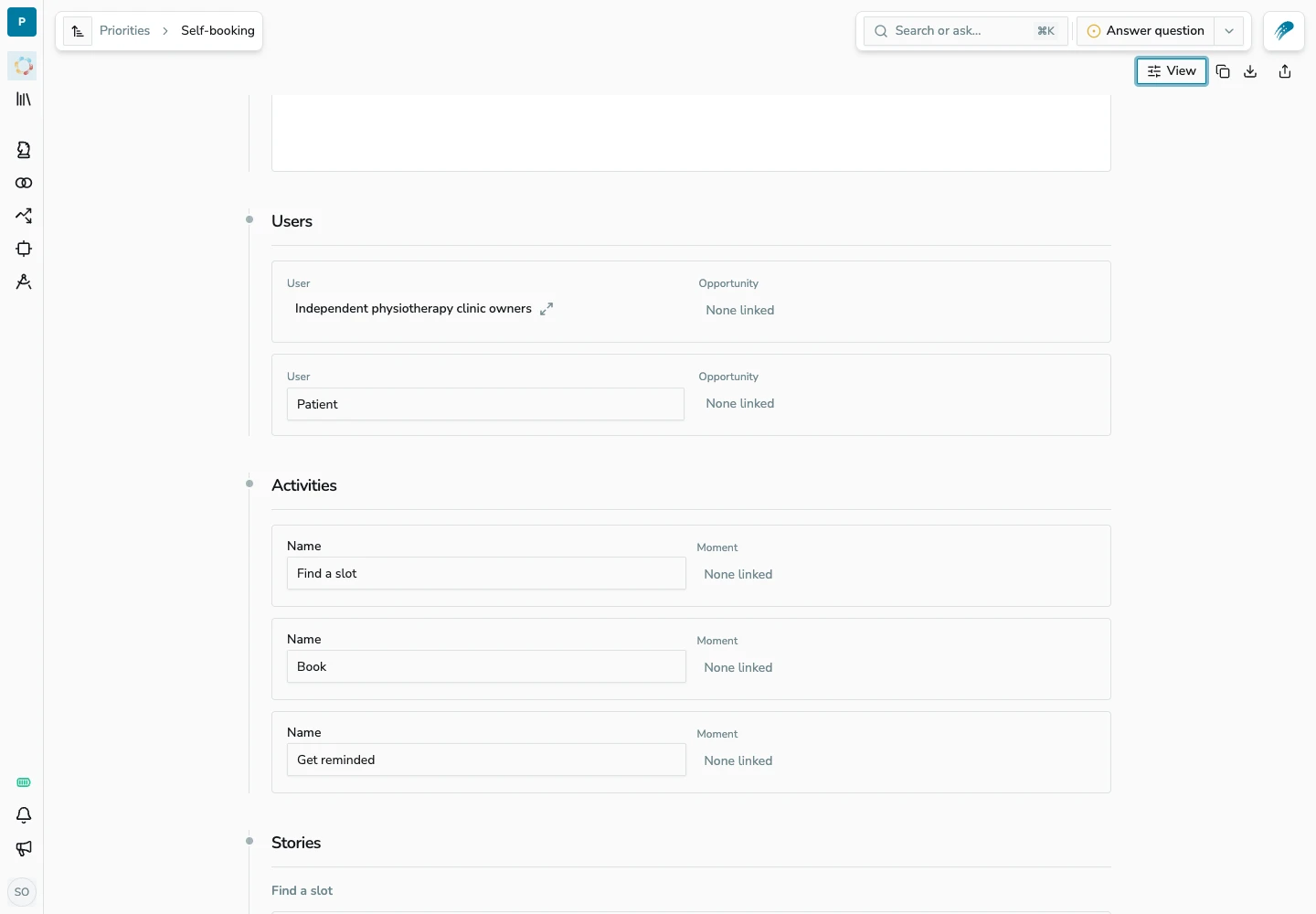
Choose Document to review the same spec as sections for users, activities, stories, and releases. Edit the spec and save changes from this view, then return to the map to see them in context.

The same story map displayed as an editable spec document
Switch to Document to review and edit the same spec.

Export to Markdown

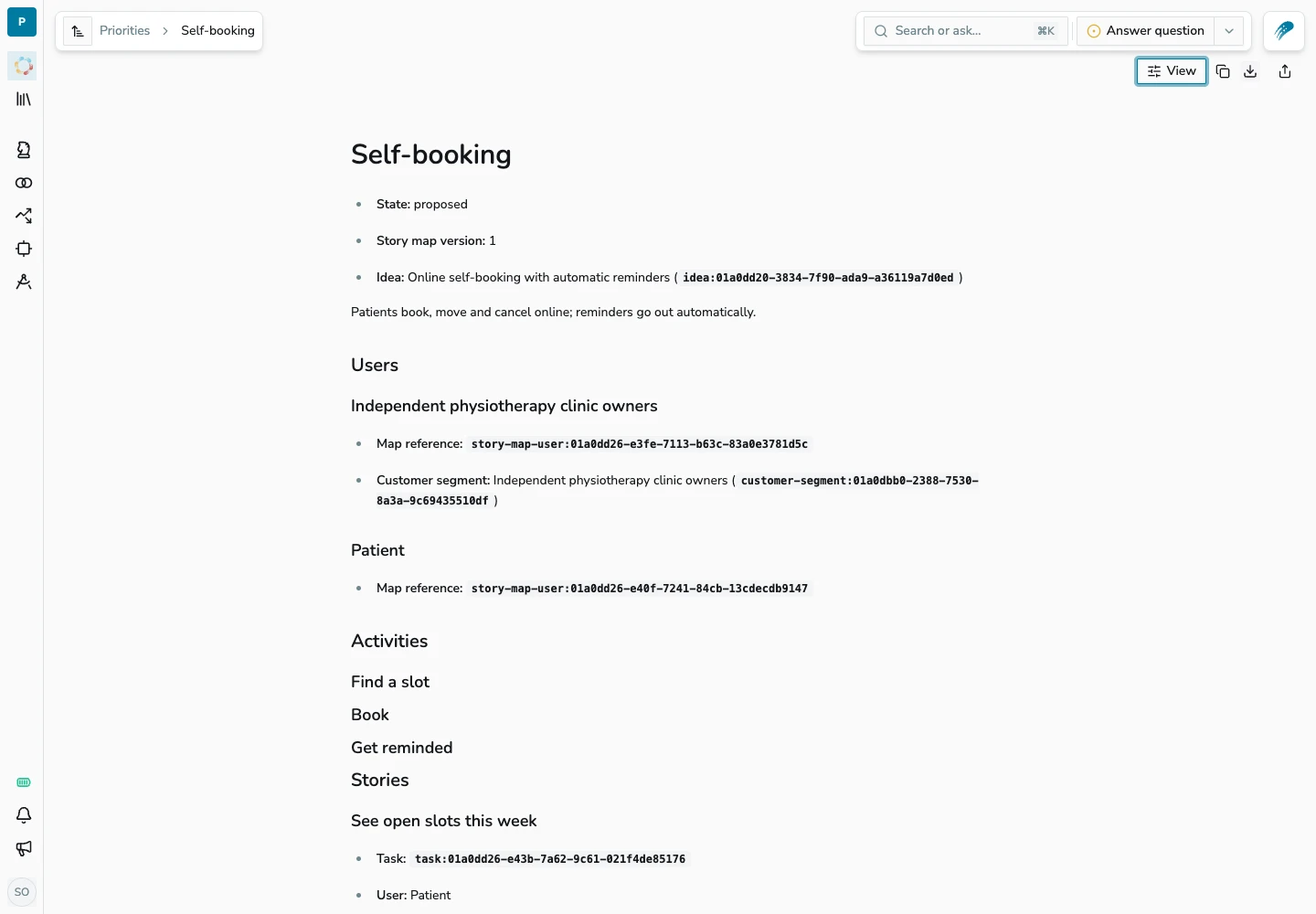
Use Copy Markdown or Download story map in the toolbar to take the spec into a repository or coding agent. The export includes users, activities, stories, linked assumptions, and releases with their target outcomes and success metrics. Choose Markdown from the View menu to inspect the text before exporting.

The story map's Markdown view with copy and download controls
Review the Markdown, then copy it or download a .md file.

The Claude Connector is now listed in Claude's connectors directory. It gives Claude web, desktop, and mobile access to Revelica without hand-configuring an MCP client.

Add the Connector

Open Revelica in Claude's connectors directory and connect it to Revelica. Sign in through the browser and review the connection's consent screen. The Connector appears with Revelica's name and logo in Claude.

Connect across clients

Cowork connects through organization connector settings. Claude Code can also connect to the MCP server using OAuth dynamic client registration and browser sign-in. The MCP docs cover setup for each client, including Claude web, desktop, mobile, and Cowork.

Browser sign-in

OAuth dynamic client registration lets supported clients register a connection and start the browser sign-in flow. This flow has been verified in Claude Code and Codex CLI, alongside the directory setup for Claude. Each client connects to the Revelica MCP server at https://api.revelica.com/mcp.

The competitive analysis playbook now coordinates competitor discovery, research, positioning, and coverage analysis for an existing value proposition. It brings the research and comparison into one workflow instead of requiring each step to be run separately.

Start with a value proposition

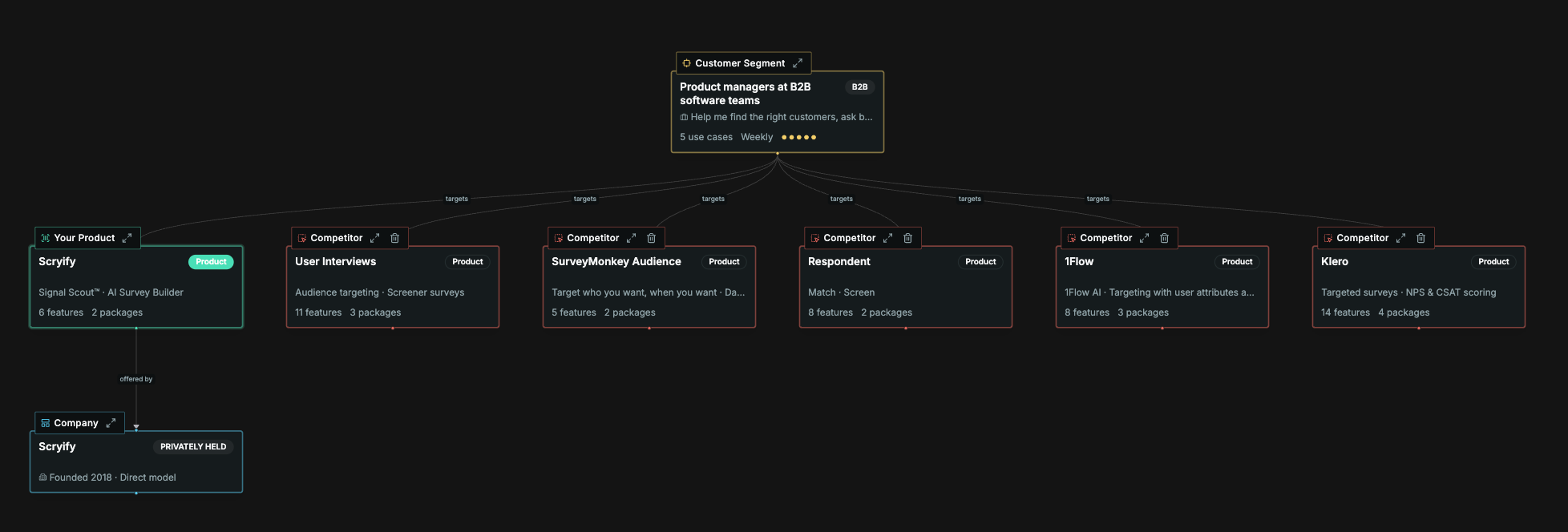
Select a value proposition and ask the product agent to analyze its competitive positioning. The playbook researches candidate competitors, records their products and pricing, and compares them with the target product for that customer segment.

A market map connecting a customer segment to the target product and competing solutions
The market map groups the target product and competitors around a customer segment.

Compare coverage

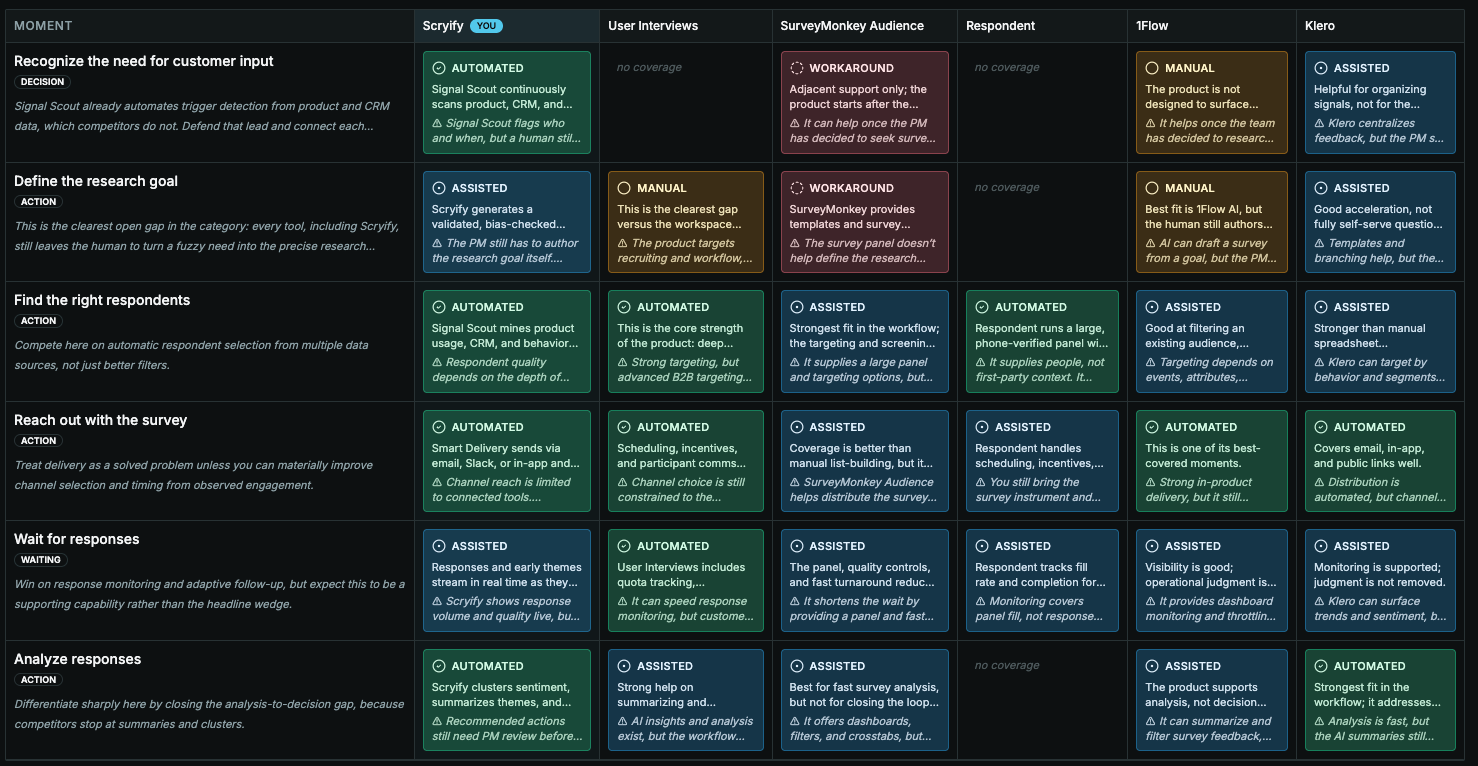
The coverage matrix compares solutions across moments in the customer's experience. Cells distinguish automated, assisted, manual, and workaround coverage, with gaps left visible when a solution does not cover a moment.

A coverage matrix comparing products across customer experience moments
Rows show customer moments; columns show each solution's coverage.

Review gaps and refresh research

Open a moment from the matrix to review its strategic advice and supporting opportunities. Ask the agent to add a competitor or refresh existing research as the market changes, then rebuild the matrix from the updated data.

See the competitive analysis walkthrough.

Story maps and product specs

ImprovedAgentCanvas

Story maps can now be edited directly on the Canvas and appear in the parent idea's Specs list. This keeps the feature's requirements and release plan together as the idea changes.

Draft a story map

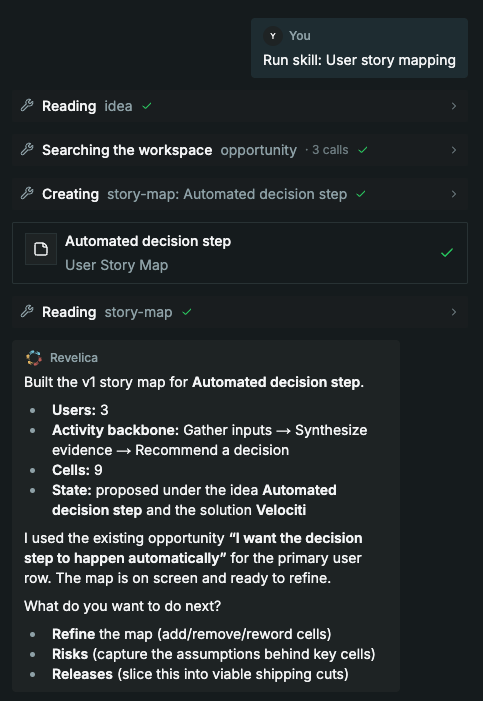
Describe a feature idea to the product agent and ask for a story map. The agent drafts users as rows, activities across the top, and user stories in the cells, reusing the workspace's customer context.

The product agent creating a first story map from an idea
The agent saves a first map with users, activities, and stories.

Edit stories and plan releases

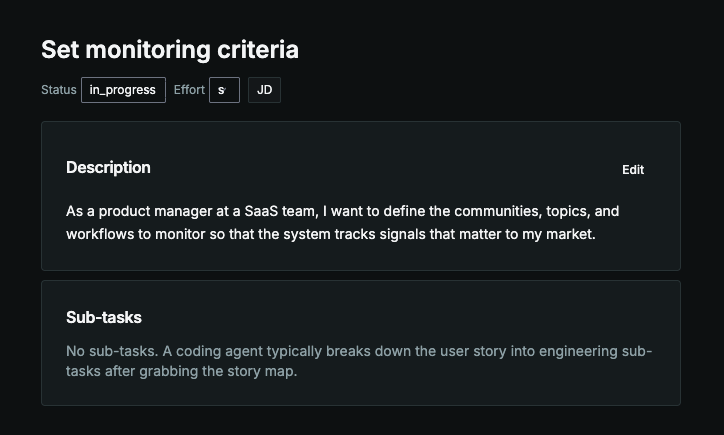
Open a story to edit its description, or add and remove stories on the map. Ask the agent to group stories into releases with a target outcome and success metric.

A user story with an editable description
Each cell opens a user story with an editable description.

Review assumptions

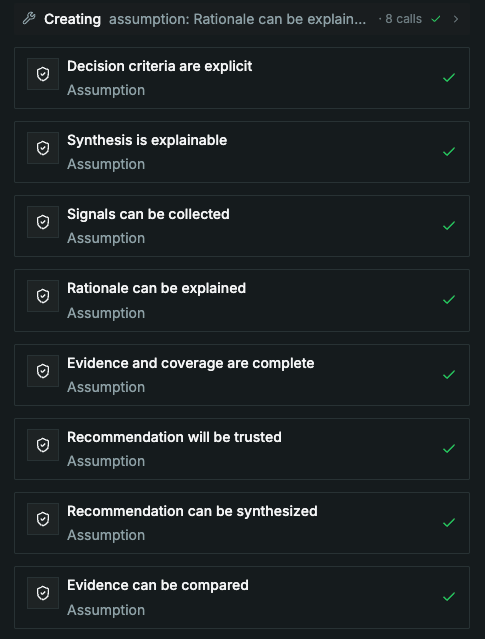
Ask the agent to identify assumptions behind risky stories before implementation. When the map is edited directly, the agent reads the updated map before continuing the work.

The product agent saving assumptions about a feature
The agent records assumptions that can be tested before implementation.

Keep specs with the idea

Story maps and Markdown spec documents linked to an idea appear in its Specs list. Open the map from there to return to the stories, releases, and assumptions for that feature.

See the story mapping walkthrough.

Revelica's MCP tools now separate searching from opening a record. Coding agents can also find their project, write specs back to the workspace, and load Revelica skills for the job.

Query and read separately

The former lookup tool handled both search and reading. Use query to find records and read to open them, then create or update to save work back to Revelica. These tools give the agent separate steps for finding context, reading it, and making changes.

Load workspace skills

The server exposes six tools: query, read, create, update, list_skills, and load_skill. Use list_skills to see the workspace's agent skills and load_skill to get the instructions for a job. Coding agents can use the write-spec skill to write a spec back to their project.

Listed in the MCP registry

On 2026-06-02, Revelica followed this update with the MCP registry listing com.revelica/revelica and a public server card at /.well-known/mcp/server-card.json. The product-for-coding-agents skill replaced product-context; read also gained dotted-path access to fields within a record.

Claude Code can now read and write the Revelica workspace through the production MCP server. Coding tasks can start with customer input, team decisions, and the spec already stored in Revelica.

Product context for coding tasks

The lookup, save, and update tools let Claude Code find workspace context and save changes back to it. The product-context skill tells the coding agent when to use Revelica during a task, so it can consult the team's product context as it works.

Connect with OAuth

The server uses streamable HTTP at https://api.revelica.com/mcp. Sign in through OAuth and review the consent screen on the first connection; no API key is required. Requests run as the signed-in user and follow the workspace's row-level security rules.

Install in Claude Code

Add the marketplace and install the plugin, then use /mcp to sign in.

Opportunity Solution Trees are first class

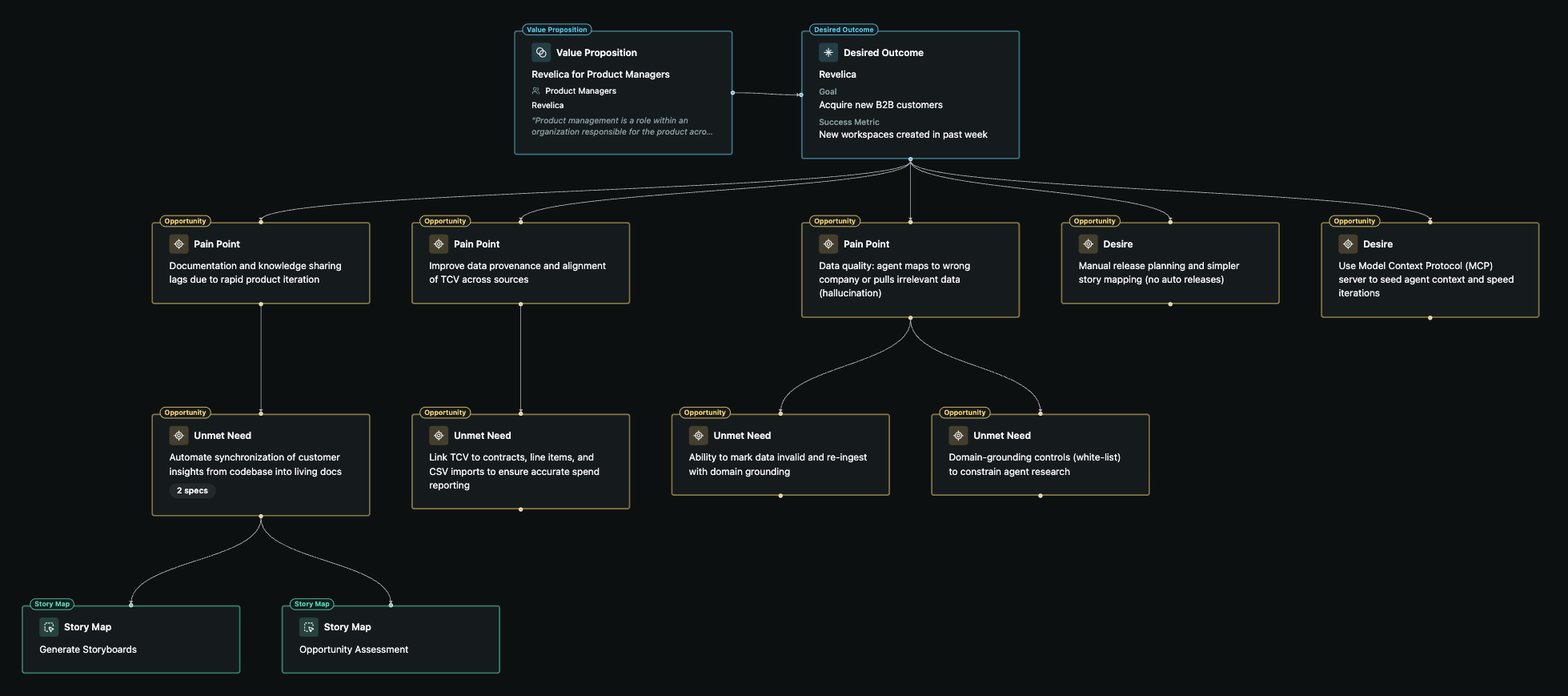
Each teamspace now has an Opportunity Solution Tree (OST), the graph from Teresa Torres' Continuous Discovery Habits1: the outcome you're working toward, the opportunities behind it, and the solutions that address them.

Teams that use OSTs usually keep them in a separate tool, which means another copy of the data to sync, and the tree is slow to set up and drifts as the team gets busy. In Revelica the tree is a view of the work itself.

One tree per teamspace

The OST is a native view for each teamspace and its desired outcome. Create separate teamspaces to keep opportunities and solutions for different areas from crowding each other.

Stays in sync

The tree updates as you work in Revelica: synthesizing customer research into opportunities, writing solution specs, and finding and testing the assumptions behind them. There's nothing to rebuild by hand.

Open any node from the tree to see its details. Some open full screen and some in a side panel, so you can check an opportunity without leaving the graph.

An opportunity open in the side panel beside the Opportunity Solution Tree
Open an opportunity in the side panel without leaving the tree.

Share it with the team

Each teamspace has a link to its OST that you can drop into Slack or Teams. The link isn't public, so the tree is only visible to people in your workspace.

Footnotes

  1. Opportunity Solution Trees by Teresa Torres ↩